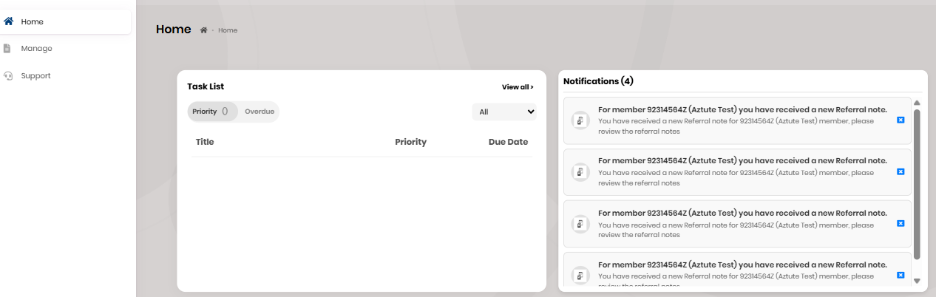
Referrer Manager External Role Access and General Functions
Overview
This guide walks users through the complete referral management workflow for the Referral Manager (External) role. It explains how the Referral Manager reviews incoming referrals, monitors referrals sent by their organization, updates referral details, adds referral notes, and tracks the status of referrals throughout their lifecycle. It also covers how notifications are received for new referrals and referral notes.
Step-by-Step Instructions
Step 1. Access Referral Lists
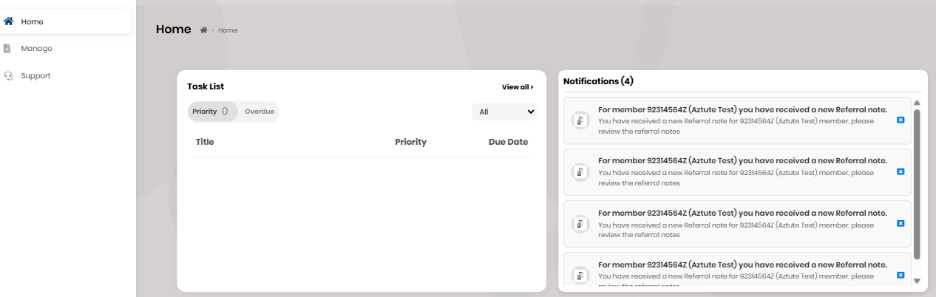
1.1 From the home screen, review the Notification Bar for alerts about:
- New referrals received
- New or updated referral notes

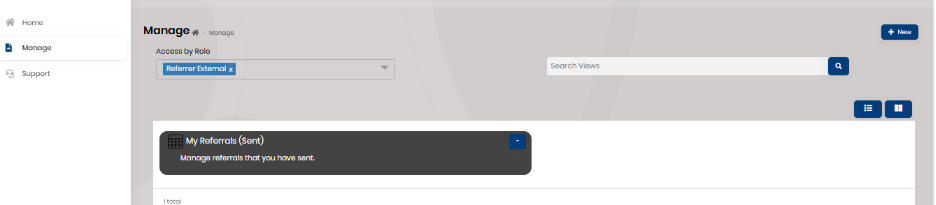
1.2 Navigate to Manage.
1.3 Access the two main views:
- All Referrals Sent
- All Referrals Received
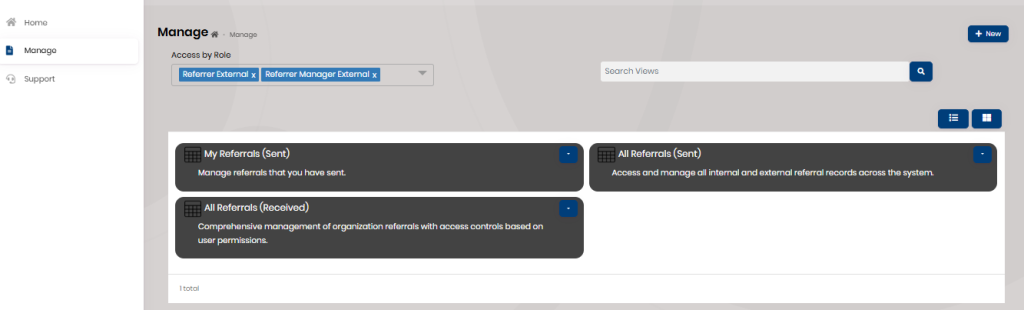
Note: If the account also had the External Referrer role, “My Referrals Sent” would appear — but Referral Manager (External) mainly uses the two views above.
Step 2. Review and Track Referrals Sent by Your Organization
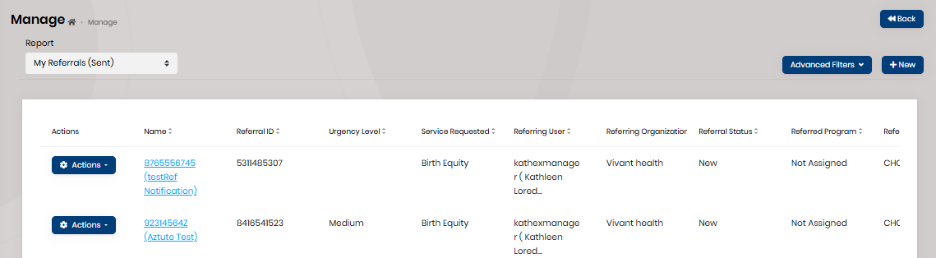
2.1 Go to Manage → All Referrals Sent.
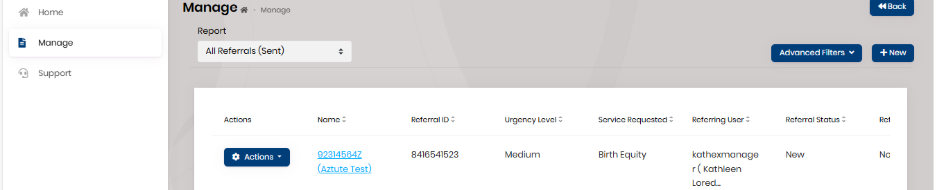
This view lists all referrals submitted by referrers in your organization (e.g., Vivant Health referrals sent to CHC)
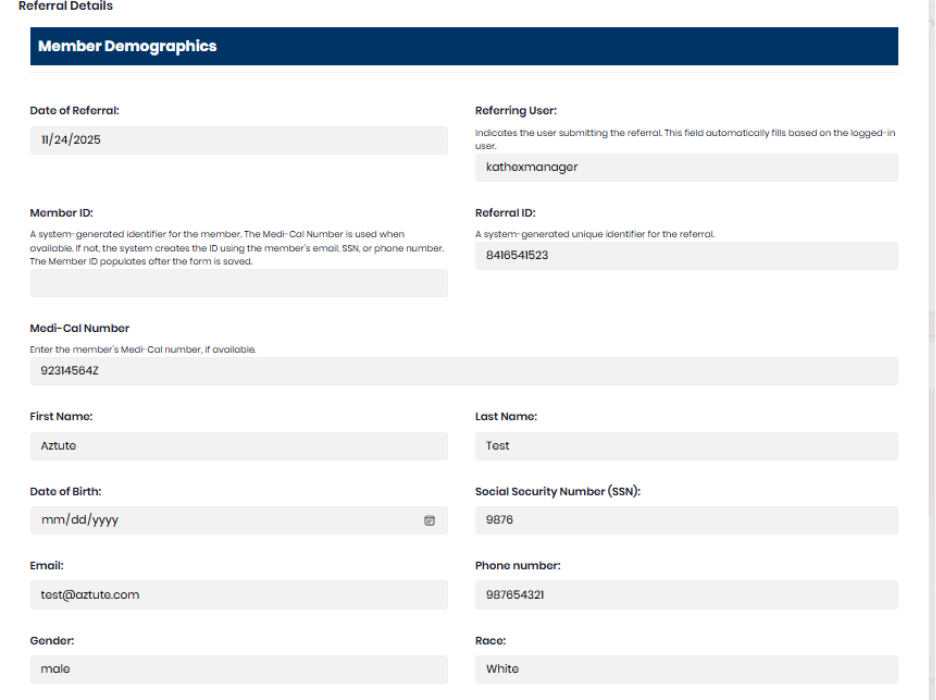
2.2 Click the member’s name hyperlink to open the referral form.
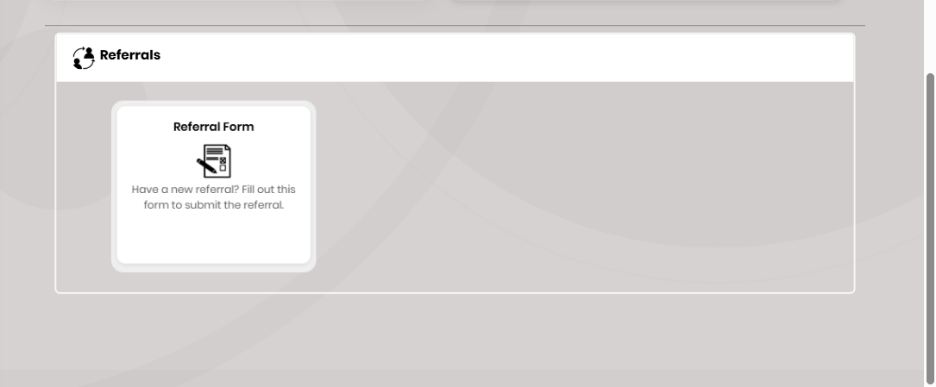
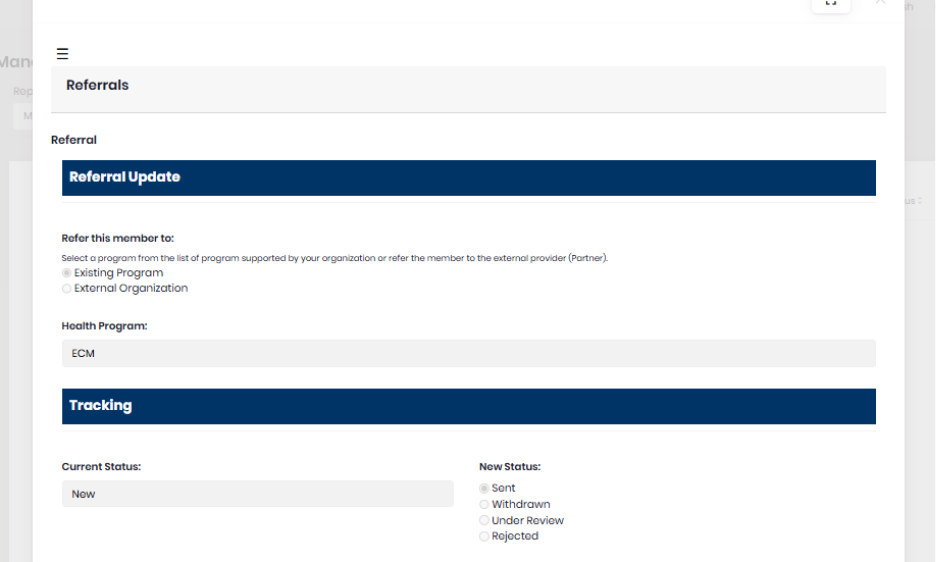
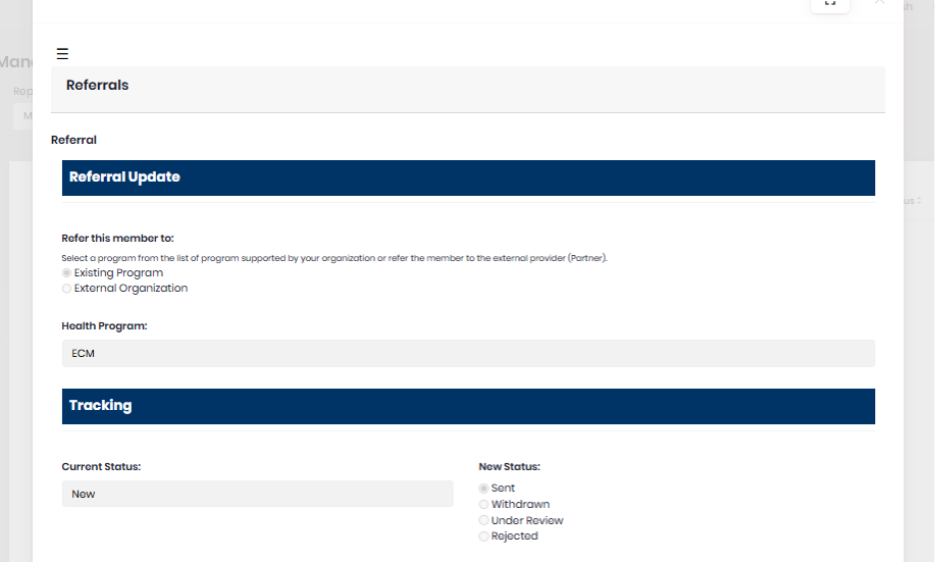
2.3 On the Referrals page (page 2), track:
- Status updates
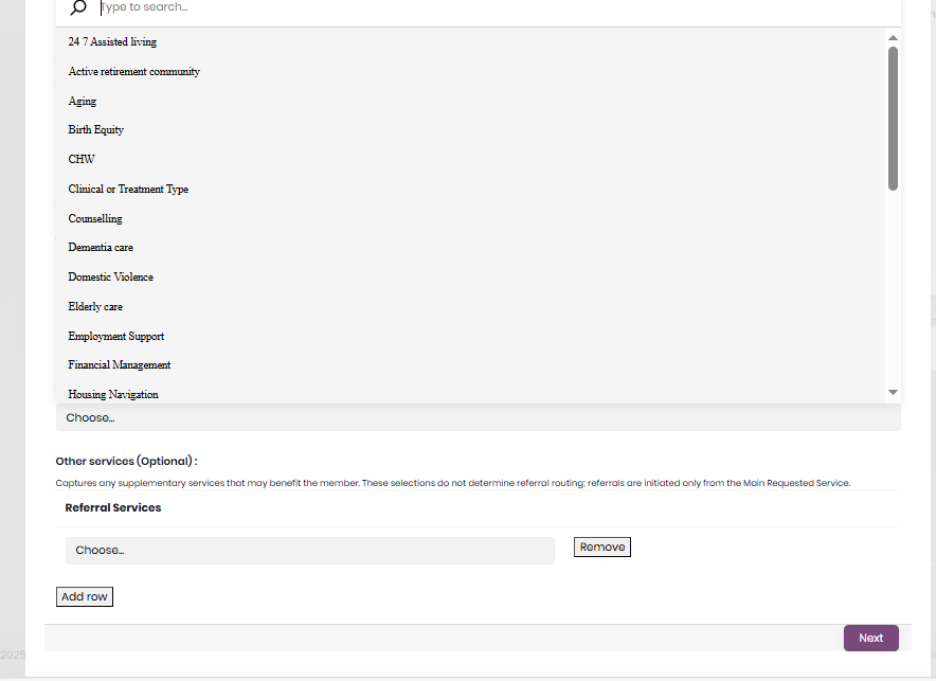
- Which program or organization the receiving entity forwarded the referral to
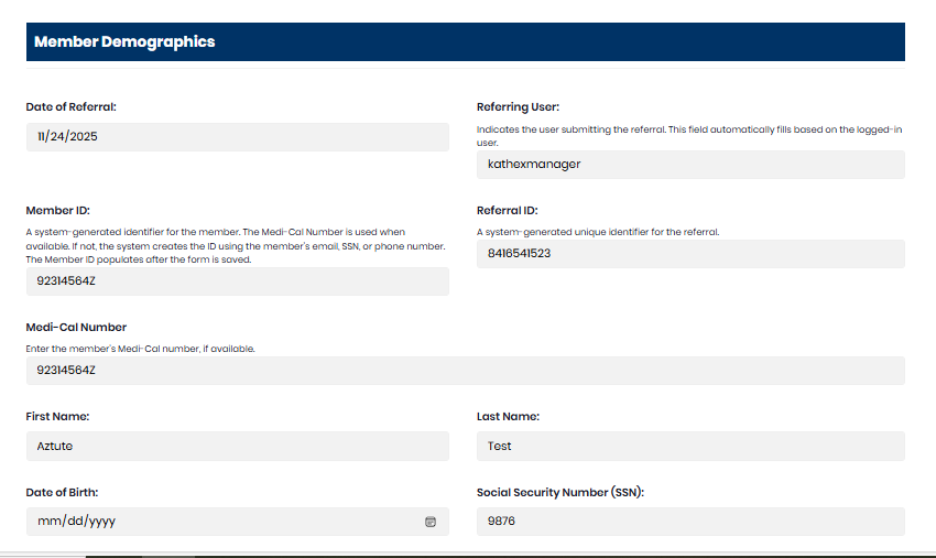
2.4 On the Referrals page (page 2), track:
- Status updates
- Which program or organization the receiving entity forwarded the referral to
- This page is not editable for the Referral Manager External
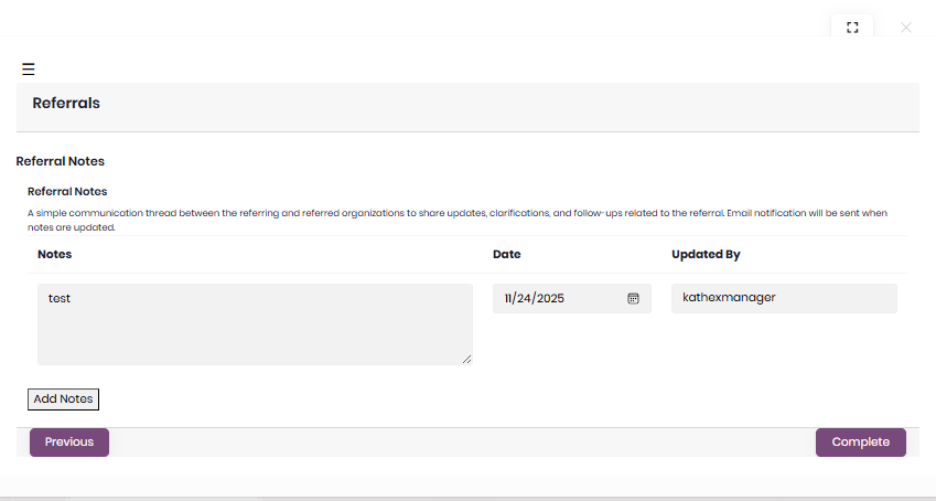
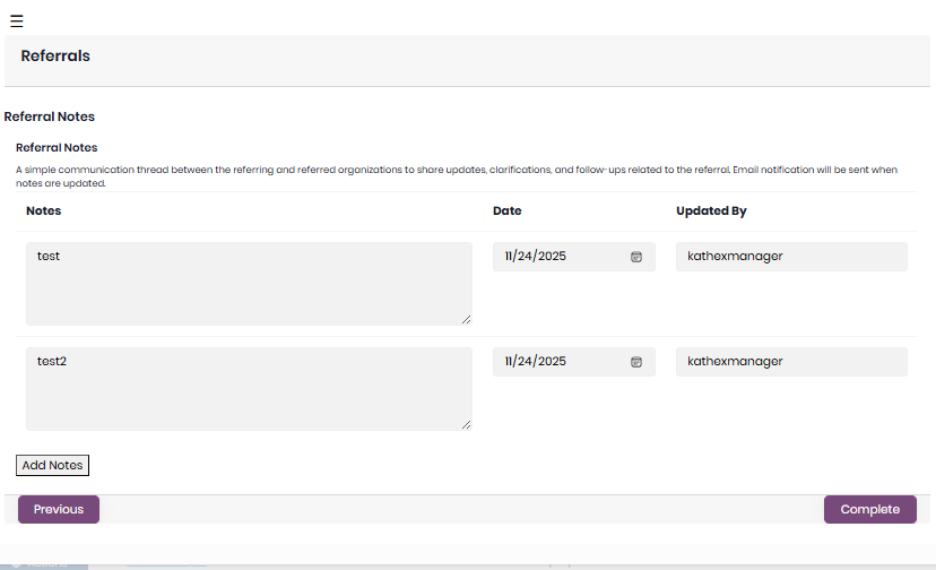
2.5 On the Referral Notes page:
- You can add notes to communicate with the receiving organization
Step 3. Review and Manage Referrals Received by Your Organization
3.1 Go to Manage → All Referrals Received.

This view shows all referrals assigned to your organization.
3.2 Open the member record by clicking on the member’s name.

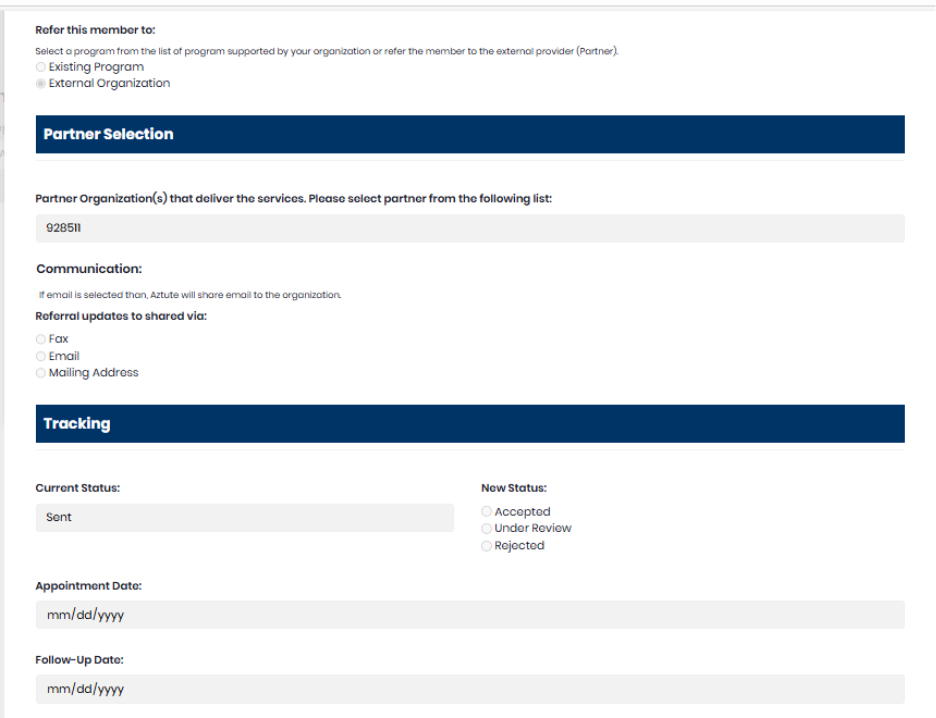
3.3 On the Referrals page (page 2), you can:
- Accept the referral
- Mark it Under Review
- Reject the referral
3.4 Add referral notes as needed and complete the form.
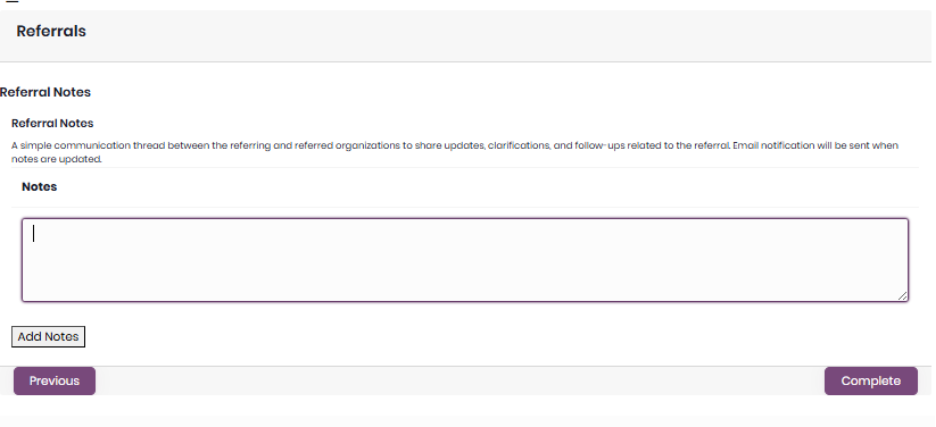
3.5 Save your changes so the referring organization can view them.
Step 4. Review Notifications on the Home Page
4.1 When the receiving organization updates a referral or adds a note, a system notification will appear.
4.2 Access these updates using the Notification Bar on the Home screen.